Blizzard UI Reskin
Dark, minimalist styling across windows, frames and interface elements while preserving Blizzard functionality and structure.
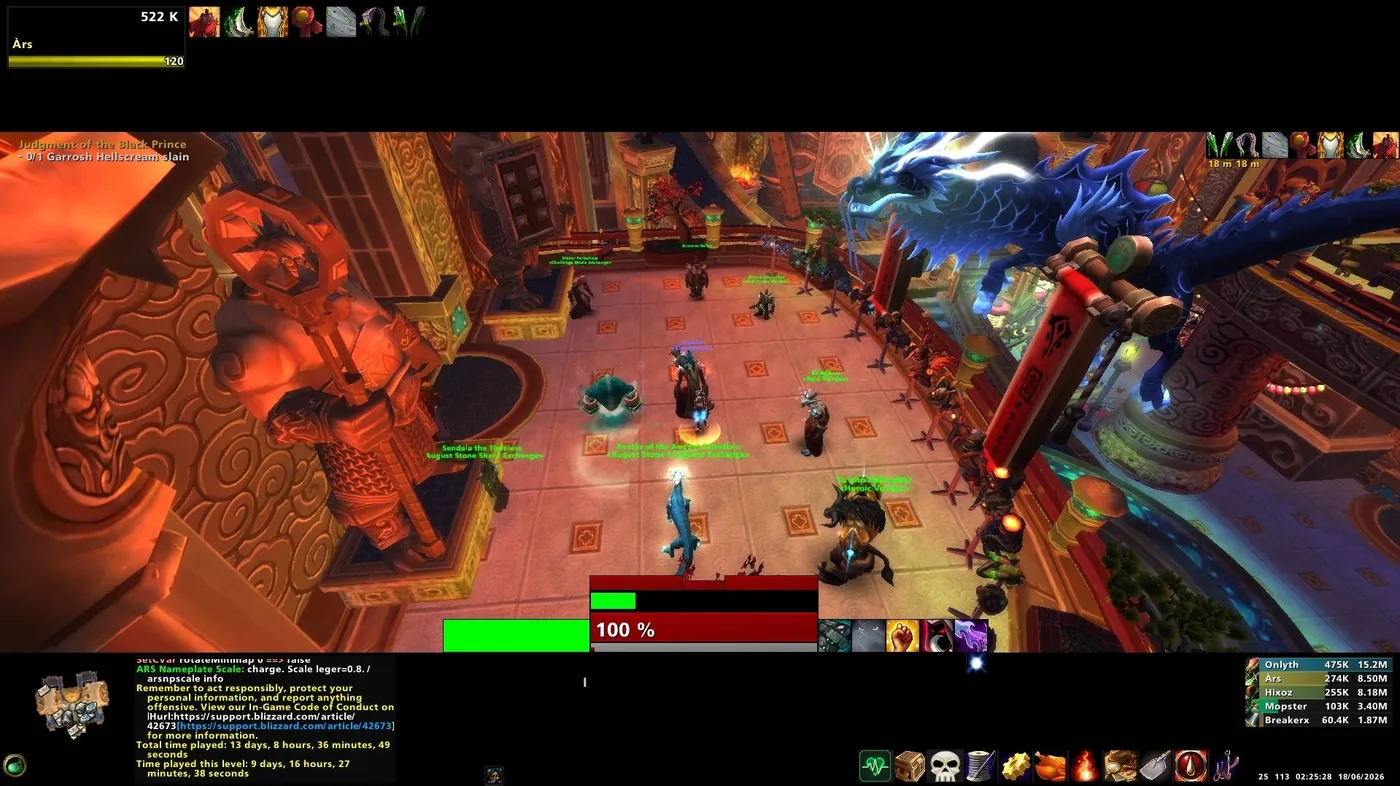
ars-UI is a lightweight all-in-one interface addon that improves the default Blizzard UI without replacing its core structure. The goal is simple: cleaner visibility, less clutter, better readability, and a setup designed for players who want a focused interface for raids, progression, farming and general gameplay.

This gallery intentionally uses direct image miniatures with a clean grid layout. Click any thumbnail to view it larger.
No titles, no text, just the screenshots directly visible in the grid.
ars-UI focuses on refining the Blizzard interface instead of replacing it with a heavy full custom UI. Every module is meant to improve readability, preserve compatibility and keep the addon lightweight.
Dark, minimalist styling across windows, frames and interface elements while preserving Blizzard functionality and structure.
ars-UI is designed to remain lightweight and includes ars-Monitor to track addon memory usage, CPU usage and percentage values directly in-game.
ars_options_cvar.lua manages a large set of Blizzard interface and gameplay settings and keeps them consistent after reloads, resets or new character setup.
Apply a ready-to-use keybinding profile directly from the ars menu for fast setup on fresh characters or after UI resets.
Rogue and Warrior macro profiles are included and can be created directly from the ars menu for quick setup.
Automatically fills action bars with the intended spells and macros in one click to complete the core setup faster.
Configure supported addons such as BigWigs, MRT, Skada and Plater, plus Edit Mode positioning, through the ars setup flow.
Dedicated space at the top and bottom of the screen keeps interface elements away from the center and improves gameplay visibility.
Multi-tab chat structure with Main, Combat, Whisper, Loot and Guild tabs plus a quick-access sidebar for cleaner communication.
Character, Quest, Spell Book, Talents, Collection, Dungeon Journal, Guild, Game Menu, Achievements, Group Finder and Bags are all visually unified.
Hide sensitive chat information with Streamer Mode and use the dedicated AFK presentation mode when idle or recording content.
A unified font setup and reskinned chat bubbles improve readability and maintain a consistent visual identity.
Lightweight CPU and memory tracker for addons, usable from ars_work or via /armon.
Performance monitoringHidden profession and utility panel with buttons for professions, cooking, fire, archaeology, survey, fishing and utility modules.
Quick access utility hubMovable fishing window with fishing skill display and live timer, plus fast direct interaction.
Fishing helperSimple movable survey window with direct click support and no timer, designed to stay lightweight.
Archaeology utilityReputation tracker with clean bars and a scrollable selector to choose which reputations to follow.
Reputation trackingTracks level time, total leveling time and progression statistics to support leveling sessions.
Leveling statsDisplays small, unobtrusive info such as latency, FPS, time and date.
DatabarProvides a timeline of events leading up to death to help review what happened in the final seconds.
Death analysisTracks bosses and rares for mounts and legendary drops with kill counts and completion status.
Loot & collection trackerTracks raid progression from Classic to Legion with kill count and number of tries before the first kill.
Progress trackerThe full ready-to-use profile is currently built for Rogue and Warrior, including WeakAuras, macros, keybinds and bars.
Supported ready-to-use setupMany files can be modified directly by advanced users who want to adapt the UI to their own class or playstyle.
Flexible foundationThese entries open the related Gyazo visual pages for specific UI elements, setup screens, windows and modules.
Click a thumbnail to open the matching YouTube video directly. No search result links are used.
Only videos with a direct YouTube link are displayed here. Paragons of the Klaxxi and Garrosh Hellscream thumbnails are kept in the assets but not shown until their direct video links are added.
After installing the files, log into the game and type /ars. This opens the ars-UI menu used for chat configuration, Edit Mode setup, addon settings, keybinds, macros, action bar setup, modules and reload actions.
Do not update ars-UI with an addon manager. Future updates should be installed manually. Do not replace ars-BossLootTracker_Backup or ars-BossProgressTracker_Backup after the first installation, otherwise you may overwrite your saved backup data.
Place ars-monitor, ars-BossLootTracker, ars-BossLootTracker_Backup, ars-BossProgressTracker, ars-BossProgressTracker_Backup, ars-UI and ars-UI-addons_setting inside World of Warcraft/classic/Interface/AddOns.
Place the Fonts folder inside World of Warcraft/classic/. Replace only if you want the ars-UI font configuration.
Place the chat bubble and tooltip folders inside World of Warcraft/classic/Interface following the intended visible or invisible bubble setup.
Make sure every required addon below is installed and enabled in-game. Enable “Load out of date AddOns” if necessary.
Once in-game, type /ars. This is the main control menu for applying the UI setup and opening ars-UI modules.
Use the /ars menu to apply chat configuration and the ars-UI Edit Mode layout, then reload the interface with /reload.
From /ars, use the supported setup buttons for BigWigs, Skada, MRT, Plater, keybinds, macros and SkillActionBar. These options can overwrite existing configuration, so use them carefully.
Open WeakAuras with /wa, import the required Wago packs listed below, then reload and verify the final 1920x1080 layout.
The FAQ below covers general usage, resolution support, installation, dependencies, setup flow, modules, troubleshooting, support and Discord usage.
ars-UI is a lightweight all-in-one interface addon for World of Warcraft MoP Classic.
It improves the default Blizzard UI without fully replacing it. Instead of rebuilding the interface from scratch, ars-UI focuses on reskinning, cleaning, repositioning, and optimizing the original Blizzard frames.
The goal is to provide a clean, minimal, readable, and performance-friendly UI while keeping Blizzard’s original functionality and compatibility.
No.
ars-UI does not try to replace the entire Blizzard interface with custom frames. It mainly modifies, reskins, and improves the default UI while preserving the original Blizzard structure.
This helps keep the addon stable, compatible, and lightweight.
The main goal of ars-UI is to create a clean, dark, minimal, and efficient interface that removes unnecessary visual clutter while keeping important gameplay information easy to read.
ars-UI is made for players who want a focused layout for PvE, raiding, progression, farming, achievement runs, and general gameplay.
Yes.
ars-UI is designed to be performance-friendly. It avoids unnecessary heavy systems whenever possible and includes ARS Monitor, a built-in performance module that can display addon memory usage, CPU usage, and percentage values directly in-game.
Both.
ars-UI is designed to work well for casual gameplay, farming, leveling, raids, achievement runs, and more serious PvE environments.
The layout is intentionally minimal so players can stay focused during combat while still having access to the information they need.
ars-UI is currently designed for World of Warcraft MoP Classic.
Other versions of the game are not officially supported unless specifically mentioned in future updates.
ars-UI is optimized for 1920x1080.
Other resolutions may work, but they are not officially supported and may cause layout issues, frame misalignment, or visual inconsistencies.
You can try, but it is not recommended unless you are comfortable adjusting the UI yourself.
The default layout, WeakAuras, action bars, viewport, frames, and other elements are designed around 1920x1080.
ars-UI can technically be used as a base for other classes, but the complete ready-to-use setup is currently designed and supported mainly for:
Rogue
Warrior
The included WeakAuras, macros, keybindings, and action bar setup are built around these classes.
Yes, but you will need to customize parts of the setup yourself.
This may include WeakAuras, macros, keybindings, action bar spell placement, class-specific options, and possibly some visual positioning.
ars-UI can be a good foundation if you are comfortable modifying it.
No.
Do not update ars-UI using an automatic addon manager or addon updater.
ars-UI should be updated manually to avoid overwriting important backup folders or custom files.
Addon managers may replace folders automatically.
This can cause problems because ars-UI includes backup modules that should only be installed the first time. Replacing them during an update may overwrite your saved backup data.
When updating ars-UI, do not replace these folders if they already exist:
ars-BossLootTracker_Backup
ars-BossProgressTracker_Backup
These folders are meant to protect backup data for the tracker modules.
You may overwrite or lose backup information created for:
ars-BossLootTracker
ars-BossProgressTracker
To avoid this, always update ars-UI manually and carefully follow the update instructions.
Yes.
On the first installation, install everything included in the ars-UI package.
For future updates, do not replace the backup folders unless you know exactly what you are doing.
Yes.
WeakAuras is mandatory to experience ars-UI as intended. ars-UI relies on a dedicated WeakAuras package for class gameplay, visual elements, and full functionality.
Without the WeakAuras package, the UI is not complete.
The main WeakAuras packs are:
ARS_UI_MOP_CLASSIC_1920x1080
ARS_ROGUE_MOP_CLASSIC_1920X1080
ARS_WARRIOR_MOP_CLASSIC_1920X1080
Import all required packs through `/wa`.
Yes.
ars-UI is designed around a small set of external addons to fully deliver its intended experience.
These addons help with encounter timers, raid tools, damage meters, nameplate readability, combat information, and general quality of life.
The required / recommended addon list includes:
!BugGrabber
BugSack
BigWigs
BigWigs_MistsOfPandaria
HandyNotes
HandyNotes_DungeonLocations(Classic)
idTip
MRT
NameplatesSCT
Skada
WeakAuras
Clean-Icons-Mechagnome-Edition
It is an icon pack used to improve the visual quality and consistency of spell and item icons.
It must be installed manually by placing the required ICONS folder in the correct WoW Interface directory.
Place the ars-UI addon folders into:
World of Warcraft/classic/Interface/AddOns
Make sure the addon folders are directly inside the AddOns folder and not inside an extra nested folder.
Place the Fonts folder into:
World of Warcraft/classic/
If a Fonts folder already exists, replace it only if you want to use the ars-UI font setup.
Place these folders into:
World of Warcraft/classic/Interface
The relevant folders are usually:
Chat-Bubbles-Invisible
Chat-Bubbles-Small
Tooltips
Follow the setup instructions depending on whether you want invisible or visible chat bubble backgrounds.
In-game, type:
/ars
This opens the ars-UI menu where you can access configuration buttons, module toggles, setup actions, and utility options.
Yes.
After applying major setup actions such as Edit Mode, addon settings, keybinds, macros, or action bars, you should reload your UI.
Use:
/reload
This helps ensure all elements are correctly applied.
Recommended first steps:
1. Enable all required addons.
2. Enable “Load out of date AddOns” if necessary.
3. Log into the game.
4. Reset and configure chat.
5. Open `/ars`.
6. Apply the required ars-UI setup options.
7. Reload the UI.
8. Import the WeakAuras packs.
9. Configure external addons as instructed.
ars-UI uses multiple chat tabs to keep communication clean and organized.
The default setup includes dedicated tabs such as:
Main
Combat
Whisper
Loot
Guild
This helps separate important communication from combat logs, loot messages, and guild chat.
The Combat tab is designed as a focused combat log view.
It can also be used in a minimal mode where the chat is hidden during gameplay to reduce screen clutter.
The quick channel sidebar is a hidden mouseover system near the chat frame.
It gives quick access to chat channels like say, party, raid, guild, and other communication options without needing to type slash commands.
Make sure you followed the chat setup steps exactly.
Usually this involves:
1. Opening chat settings.
2. Resetting chat to default.
3. Opening `/ars`.
4. Clicking the chat configuration option.
5. Waiting for reload.
6. Manually configuring each tab as shown in the setup images.
The Edit Mode setup applies the ars-UI layout through the in-game Edit Mode system.
It helps position Blizzard UI elements according to the ars-UI layout.
ars-UI includes setup options that can configure supported addons through the ars menu.
You should still make sure the required addons are installed and enabled before using these setup options.
After clicking the supported addon setup buttons, reload your UI.
Use:
/reload
Yes.
ars-UI includes an Auto Keybinding system that can apply a complete default keybind profile.
Yes.
The keybinding setup can remove your current keybinds and apply the ars-UI default setup.
Do not use it unless you are sure you want to replace your current keybinds.
Yes.
Advanced users can edit the keybinding file:
ars-UI/ars_main_config/ars_binding_profile.lua
Yes.
ars-UI includes macro setup support for Rogue and Warrior.
Yes.
The macro setup may delete and recreate macros based on the ars-UI default profiles.
Do not use it unless you are sure you want to replace your current macros.
Because mount names may depend on your own collection and preferences.
You should open the macro file and replace the default mount names with the correct mount names you want to use.
SkillingBar is the ars-UI system that can automatically place spells and macros onto your action bars.
It is designed to quickly set up a complete action bar layout after macros and keybinds are configured.
Yes.
The SkillingBar setup can clear your current action bars and fill them with the ars-UI layout.
Do not use it unless you are sure you want to replace your current action bar setup.
Yes.
If you change spec, you may need to run the correct SkillingBar setup for your current class/spec.
The viewport creates dedicated space at the top and bottom of the screen.
This allows UI elements to be placed outside the central gameplay area, keeping the middle of the screen clearer during combat.
ars-UI hides or cleans several Blizzard UI elements to reduce visual clutter.
This can include default bars, buttons, popups, zone text, error messages, boss emotes, and other non-essential elements.
The default bag bar is hidden to keep the interface clean.
To change or reorganize bags, use the ars menu option related to bags, then make your changes.
ars-UI replaces them with its own integrated systems.
XP, leveling, and reputation tracking are handled through ars-UI modules instead of the default Blizzard bars.
Yes.
Even though the Player Frame is visually cleaned up, it keeps default Blizzard functionality. You can still click it to access the standard player menu.
Yes.
ars-UI reskins Blizzard windows while preserving their functionality.
Major windows such as character, spell book, talents, dungeon journal, achievements, group finder, bags, and other panels remain usable.
ARS Monitor is a lightweight performance monitoring module included with ars-UI.
It can display addon memory usage, CPU usage, and percentage values directly in-game.
You can open it from the ars_work panel or by typing:
/armon
ars_work is a utility panel that gives quick access to professions and gameplay tools.
It includes buttons for professions, cooking, campfire, archaeology/survey, fishing, ARS Monitor, BossLootTracker, BossProgressTracker, and other utility features.
The Fishing Module opens a small movable fishing window.
It displays fishing skill, includes a timer, and allows direct fishing interaction through the module.
The Survey Module opens a small movable Survey window.
It includes direct left-click and right-click support, has no timer, and is designed to stay lightweight and simple.
ars_reput is a reputation tracking module.
It displays selected reputations as clean bars and allows you to choose which reputations to track through a scrollable menu.
ars_leveling is a leveling tracker module.
It tracks time spent per level, total leveling time, and progression statistics.
ars_databar displays useful information such as:
Latency
FPS
Time
Date
It is designed to be clean, small, and unobtrusive.
ars_deathlog is a death analysis module.
It shows a timeline of events leading up to your death, helping you understand what happened during the last seconds before dying.
ars-BossLootTracker tracks bosses and rare NPCs that can drop mounts or legendary items.
It helps you follow kill count, attempts, and whether the reward has already been obtained.
Mount tracking uses account-wide collection data, while legendary tracking can be character-based.
ars-BossProgressTracker tracks raid boss progression from Classic up to Legion.
It displays kills and the number of tries before the first successful kill.
They are actively evolving and may require additional fixes for specific bosses, rare NPCs, raid encounters, or edge cases.
If something does not track correctly, report it in the support or bug-report channel with details.
Please provide:
Character name
Boss or rare name
Raid or zone
Difficulty
Was it solo, party, or raid group?
Did the boss die near you?
Did the tracker update or not?
Screenshot if possible
Any BugSack error if available
Use the support channel or support forum/category on the Discord server.
Please avoid posting support requests in general chat if a dedicated support channel exists.
A good bug report should include:
WoW version
ars-UI version
Character class/spec
What happened
What you expected to happen
Steps to reproduce the issue
Screenshot or video if possible
BugSack error if available
List of other addons enabled if relevant
If possible, yes.
Some UI issues can be caused by conflicts with other addons. Testing with only ars-UI and required addons enabled can help confirm whether the issue comes from ars-UI or another addon.
BugGrabber and BugSack help capture Lua errors.
If you report a bug, Lua error information can be extremely useful for fixing the problem faster.
Try the following:
1. Make sure the update was installed manually.
2. Make sure backup folders were not overwritten.
3. Check that all required addons are enabled.
4. Reload the UI.
5. Restart the game if needed.
6. Check the Discord announcements or known issues.
7. Report the issue with screenshots and error logs if it continues.
Use the feedback channel.
You can share impressions, suggestions, problems, things you like, or things you think could be improved.
Use the suggestions or wishlist channel.
Please explain what you want, why it would be useful, and how you imagine it working.
No.
Suggestions are welcome, but ars-UI follows a minimalist and performance-friendly design philosophy.
Features that add too much visual clutter, CPU usage, or complexity may not be accepted.
You can suggest it, but current full support is focused on Rogue and Warrior.
Class support requires WeakAuras, macros, keybinds, action bar setup, and testing, so it may take time.
The main purpose is ars-UI presentation, support, feedback, and community discussion.
However, the Discord can also be used to organize raids, achievement runs, world tours, and other community events.
Raids and events should be organized in the dedicated raid/event category.
Recommended channels include:
raid-signups
raid-chat
raid-info
raid-voice
raid-archives
raid-signups is used for event posts, raid invitations, achievement runs, world boss tours, and signups through a raid organization bot such as Raid-Helper.
raid-chat is the general text channel for raid-related discussion.
Use it for questions, assignments, screenshots, links, strategies, absences, and anything useful for raid organization.
raid-archives is used to keep completed raid information, old event notes, screenshots, logs, past assignments, and useful references.
raid-voice is the main voice channel used during organized raids or achievement runs.
Please keep communication clear and give priority to raid leaders during encounters.
Please keep your microphone clean.
Use push-to-talk if your microphone picks up keyboard noise, music, TV, breathing, or room noise.
Do not spam soundboards, loud sounds, or unnecessary audio during raids.
During encounters, raid leaders and officers have priority on voice communication.
Yes, if configured by the server staff.
Inactive users may be moved to the AFK channel automatically after a period of inactivity.
Usually no.
Announcement and information channels should normally be read-only for regular members.
Only staff, admins, or project maintainers should post there.
Yes, if the channel is designed for support.
If a forum-style support channel is used, please create one post per issue and include as much information as possible.
Usually no.
Raid event creation should be limited to trusted roles such as:
Admin
Officer
Raid Leader
This keeps event organization clean and avoids spam.
Yes, if they are relevant to ars-UI, support, feedback, or raid organization.
For bug reports, screenshots and videos are very useful.
Check the following:
1. You are using WoW MoP Classic.
2. Your resolution is 1920x1080.
3. All required addons are installed.
4. WeakAuras packs are imported.
5. The Fonts folder is installed correctly.
6. Chat bubble / tooltip folders are installed correctly.
7. Edit Mode setup was applied.
8. You reloaded the UI after setup.
9. You did not skip required configuration steps.
Make sure all required WeakAuras packs are imported.
Also confirm that your resolution is 1920x1080 and that you did not move or disable required groups inside WeakAuras.
Check that the macros were created correctly.
If mount macros are involved, verify that the mount names inside the macro file match mounts you actually own and use.
If you used the ars-UI keybind setup, make sure it completed correctly and reload your UI.
If you customized keybinds manually, check the keybinding profile file or adjust binds in-game.
Make sure you selected the correct class/spec when using SkillingBar.
If you changed spec, you may need to run the correct setup again.
Reset chat to default, then follow the chat configuration steps again.
Make sure you configure each tab exactly as shown in the setup instructions.
Reload the UI first.
If it remains misplaced, confirm that Edit Mode setup was applied correctly and that you are using the supported resolution.
Install BugGrabber and BugSack, then copy the error information and post it in the support channel with context.
Do not only say “it does not work”. Always include the error and what you were doing when it happened.
You can support the project by:
Giving feedback
Reporting bugs clearly
Sharing screenshots or videos
Suggesting useful improvements
Helping other users
Following the project’s social links
Supporting through donation links if available
Yes.
You can modify ars-UI for your own setup if you are comfortable editing files.
However, if you heavily modify the UI, official support may be limited because your version may no longer match the original setup.
Please respect the original project and give proper credit.
If you are unsure what is allowed, ask the project owner or staff before distributing modified versions.
Before installing, read:
Installation instructions
Update warnings
Required addons list
WeakAuras setup
Resolution and class compatibility notes
This will prevent most common setup problems.
Do not update ars-UI with an addon manager.
Do not replace the backup folders during future updates:
ars-BossLootTracker_Backup
ars-BossProgressTracker_Backup
Start with:
1. Read the installation guide.
2. Install required addons.
3. Install ars-UI manually.
4. Import WeakAuras.
5. Apply setup through `/ars`.
6. Reload your UI.
7. Ask for help in the support channel if needed.
Thank you for using ars-UI.
Your feedback, reports, and suggestions help improve the project over time.